> ## Documentation Index
> Fetch the complete documentation index at: https://help.kuverbooks.com/llms.txt
> Use this file to discover all available pages before exploring further.
# Understand the Kuvera Arc Interface and Navigation
> Get familiar with the three main areas of the Kuvera Arc interface — the sidebar, top bar, and content area — so you can work efficiently.
Kuvera Arc uses a centralized workspace that keeps your business tools, records, and modules within easy reach. Understanding the interface layout helps you navigate confidently, find what you need quickly, and manage daily operations without friction.
## Interface layout
The Kuvera Arc screen is divided into three main areas.
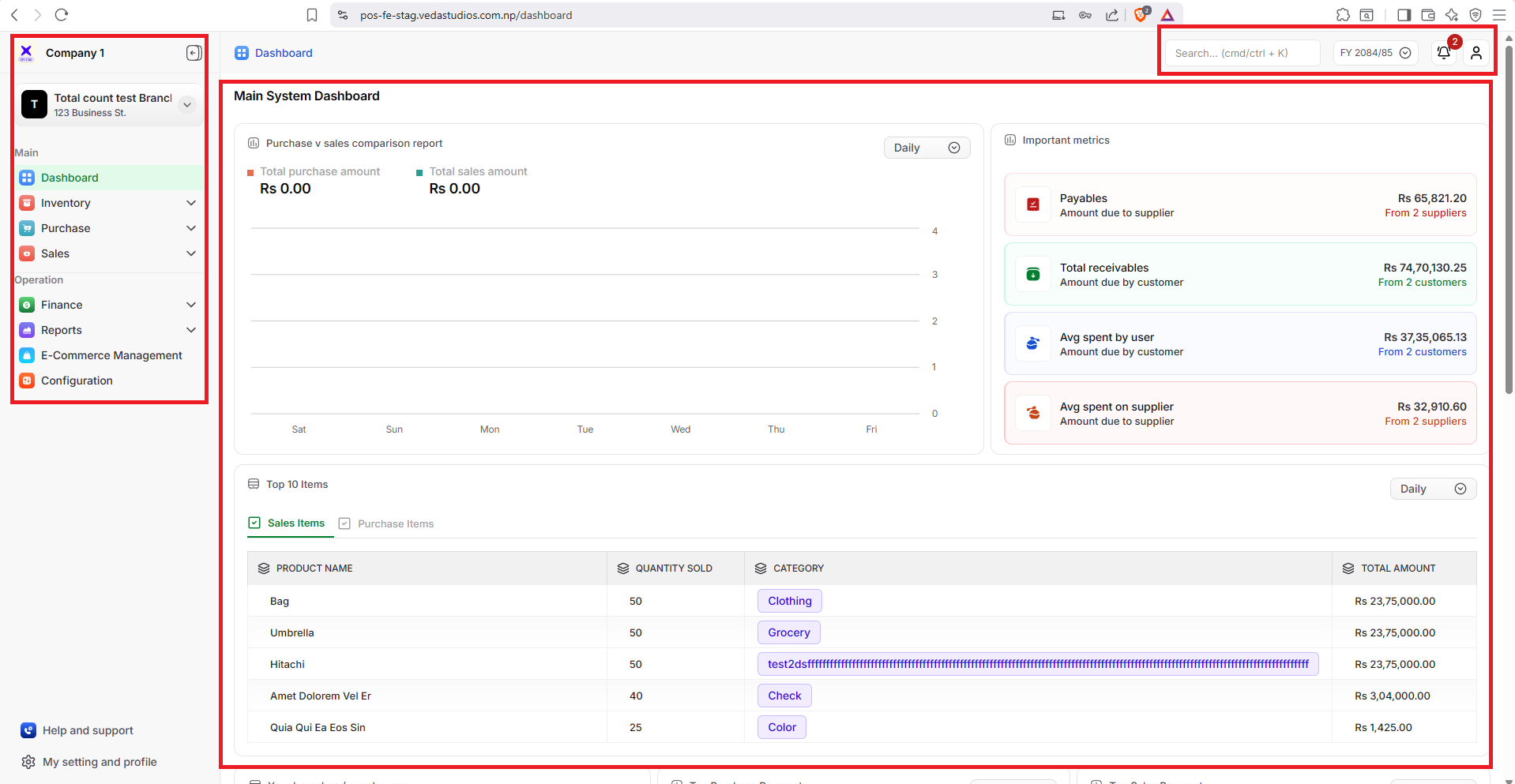 Fixed on the left side. Use it to switch between operational modules and sections.
Fixed at the top. Use it to access search, fiscal year, notifications, and profile options.
Located in the center and right side. Use it to view and work inside the selected module.
The sidebar, top bar, and main content area remain available throughout Kuvera Arc, so you can switch modules or use system tools without losing your place.
## Left navigation panel
The left navigation panel is the primary way to move between major areas of Kuvera Arc. It stays fixed on screen regardless of which module you are working in and shows your branch name at the top for quick context.
Fixed on the left side. Use it to switch between operational modules and sections.
Fixed at the top. Use it to access search, fiscal year, notifications, and profile options.
Located in the center and right side. Use it to view and work inside the selected module.
The sidebar, top bar, and main content area remain available throughout Kuvera Arc, so you can switch modules or use system tools without losing your place.
## Left navigation panel
The left navigation panel is the primary way to move between major areas of Kuvera Arc. It stays fixed on screen regardless of which module you are working in and shows your branch name at the top for quick context.
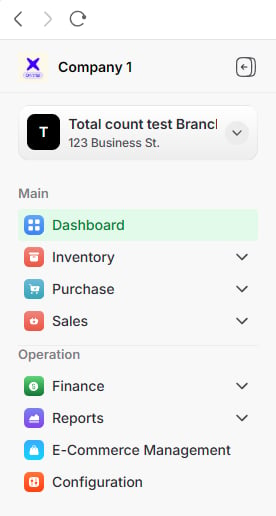 The **Main** section contains the core day-to-day operational modules.
View key business metrics, activity summaries, alerts, and performance insights.
Manage products, stock levels, item records, units, attributes, and inventory movement.
Track suppliers, purchase orders, goods received notes, bills, and purchase adjustments.
Process sales orders, invoices, credit notes, customers, and billing activity.
The **Operation** section contains supporting business functions.
Manage bank accounts, account payables, account receivables, ledgers, and payments.
Generate and review reports across sales, purchase, inventory, finance, and operations.
Set up company details, inventory rules, invoice settings, access, and system preferences.
Selecting an item in the sidebar updates the main content area to show the selected module or page.
## Top navigation bar
The top navigation bar gives access to system-wide tools that apply across Kuvera Arc.
The **Main** section contains the core day-to-day operational modules.
View key business metrics, activity summaries, alerts, and performance insights.
Manage products, stock levels, item records, units, attributes, and inventory movement.
Track suppliers, purchase orders, goods received notes, bills, and purchase adjustments.
Process sales orders, invoices, credit notes, customers, and billing activity.
The **Operation** section contains supporting business functions.
Manage bank accounts, account payables, account receivables, ledgers, and payments.
Generate and review reports across sales, purchase, inventory, finance, and operations.
Set up company details, inventory rules, invoice settings, access, and system preferences.
Selecting an item in the sidebar updates the main content area to show the selected module or page.
## Top navigation bar
The top navigation bar gives access to system-wide tools that apply across Kuvera Arc.
 Shows the currently signed-in account name.
Quickly find records, modules, items, or business information across the system.
Switch accounting periods to view or record transactions in the correct fiscal year.
View alerts, pending actions, approval updates, stock activity, and transaction updates.
Access account options, profile preferences, and sign-out controls.
**Fiscal year selector**
Use the fiscal year selector to switch between accounting periods directly from the top bar. This is useful when reviewing historical records or confirming that transactions are recorded in the correct fiscal year.
Learn how to switch fiscal years in Kuvera Arc.
**Notifications**
The notification icon shows recent system alerts, such as pending approvals, stock activity, and transaction updates. Selecting it opens a quick-access panel without leaving the current page.
Learn how to review notifications and system alerts.
**Profile icon**
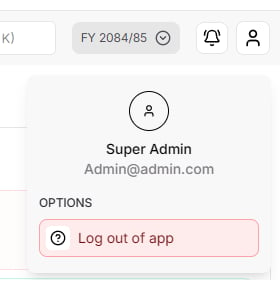
Use the profile icon to access account-level options and system controls, including profile preferences and sign-out actions.
Shows the currently signed-in account name.
Quickly find records, modules, items, or business information across the system.
Switch accounting periods to view or record transactions in the correct fiscal year.
View alerts, pending actions, approval updates, stock activity, and transaction updates.
Access account options, profile preferences, and sign-out controls.
**Fiscal year selector**
Use the fiscal year selector to switch between accounting periods directly from the top bar. This is useful when reviewing historical records or confirming that transactions are recorded in the correct fiscal year.
Learn how to switch fiscal years in Kuvera Arc.
**Notifications**
The notification icon shows recent system alerts, such as pending approvals, stock activity, and transaction updates. Selecting it opens a quick-access panel without leaving the current page.
Learn how to review notifications and system alerts.
**Profile icon**
Use the profile icon to access account-level options and system controls, including profile preferences and sign-out actions.
 ## Main content area
The main content area displays the module or section selected from the sidebar. It changes dynamically as you navigate through Kuvera Arc.
## Main content area
The main content area displays the module or section selected from the sidebar. It changes dynamically as you navigate through Kuvera Arc.
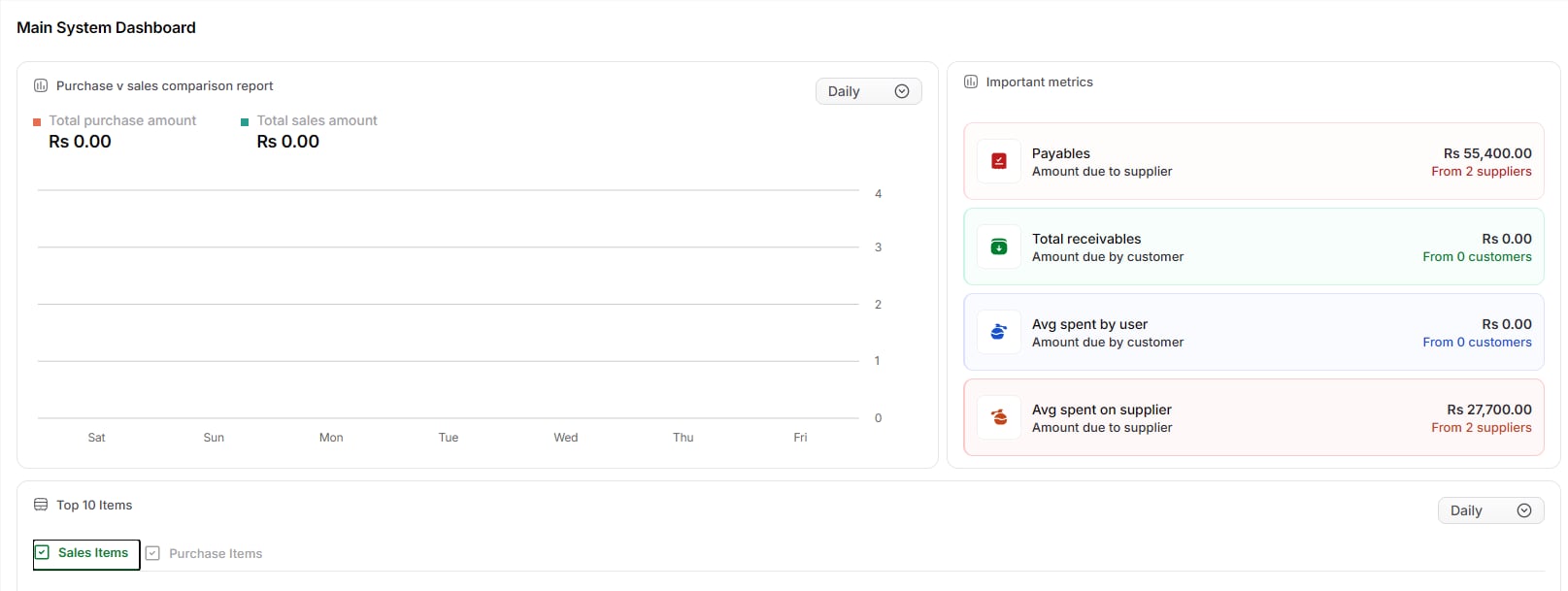 Depending on the active module, the main content area lets you:
* View dashboard summaries and business metrics
* Browse and manage inventory records
* Create and track purchase and sales documents
* Review financial accounts and reports
* Configure system settings and preferences
Use the fixed sidebar for module navigation and the top bar for system-wide tools. Together, they give you full control of business operations from one consistent workspace.
Depending on the active module, the main content area lets you:
* View dashboard summaries and business metrics
* Browse and manage inventory records
* Create and track purchase and sales documents
* Review financial accounts and reports
* Configure system settings and preferences
Use the fixed sidebar for module navigation and the top bar for system-wide tools. Together, they give you full control of business operations from one consistent workspace.