Navigate Kuvera Arc Using the Left Sidebar Modules
Use the Kuvera Arc left sidebar to switch between modules like Inventory, Sales, Finance, and Reports without leaving your workspace.
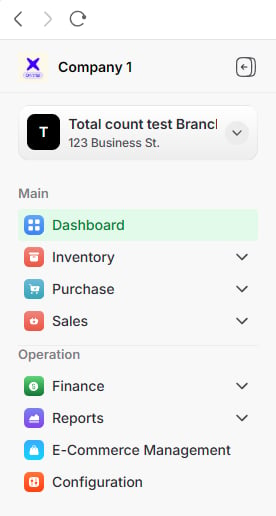
The left sidebar is the primary navigation tool in Kuvera Arc. It stays fixed on the left side of the screen and gives you quick access to major operational areas from one consistent workspace.
At the top of the sidebar, you can see your branch name, which helps confirm that you are working in the correct business location. Below the branch name, the sidebar lists the modules and sections available to your user role.
Left sidebar overview
Use the sidebar to move between Dashboard, Inventory, Purchase, Sales, Finance, Reports, and Configuration at any point during your session.
Find the module you want to work in, such as Inventory, Sales, or Finance, in the left sidebar.
Locate a module in the sidebar
2
Select the module
Click the module name. The sidebar highlights the selected item to show that it is active.
Selected sidebar module
3
Use the main content area
The main content area updates to show the selected module. You can now work within that section.
Selected module content area
You can switch to another section at any time by clicking a different item in the sidebar. The sidebar updates the main content area without changing the overall workspace layout.
The sidebar gives you a single starting point for daily business operations. Instead of moving through multiple menus, you can access key modules in one click.
Inventory management
Use Inventory to keep product records accurate, track stock levels, and manage item-related information.
Sales activities
Use Sales to process customer transactions, create invoices, and manage customer-facing records.
Purchase records
Use Purchase to track supplier orders, incoming stock, bills, and purchase-related documents.
Financial operations
Use Finance to maintain accounts, payments, ledgers, payables, and receivables.
Reporting tools
Use Reports to review business performance and pull insights across available modules.
System configuration
Use Configuration to adjust setup options, access controls, document settings, and business preferences.
If a module or section is not visible in your sidebar, it may not be enabled for your user role. Contact your system administrator to request access.